Articles in this section

Security controls for 3rd‑Party Subcontract Portals (Jobpac 2026 R2)

In Jobpac Release 2026 R2 (May), additional security has been introduced around activating and changing 3rd‑Party Subcontract Portal settings. This ensures that linking and delinking portals (such as Payapps) is tightly controlled and fully auditable.
This change is designed to prevent unauthorised updates that could cause data mismatches between 3rd‑Party Subcontract Claim Portals and Jobpac claim values, which can lead to support issues and unauthorised payment changes.
Note: At the Subcontract level, this setting should not be changed once subcontract claiming has commenced, except in exceptional circumstances and only in consultation with the Jobpac support team.

What has changed

The following security and control enhancements are now in place:
  • User-based security to allow or prevent changes to 3rd‑Party Subcontract Portal settings.
  • Full audit tracking of all changes, capturing:
    • User ID
    • Date and time (timestamp)
    • A mandatory reason for the change
  • Edit controls enforced in both:
    • Job Maintenance
    • Subcontract Maintenance
Note: Audit history is currently accessible via the Jobpac support team. A future release will provide customers with a dedicated window to easily review this audit history.
This feature is automatically active in 2026 R2. By default, all users are set to not allowed to change 3rd‑Party Subcontract Portal settings.

Security setup – granting user access

Authorised users can be granted access to manage 3rd‑Party Subcontract Portal settings at either:
  • A specific WorkID, or
  • Globally across all WorkIDs???
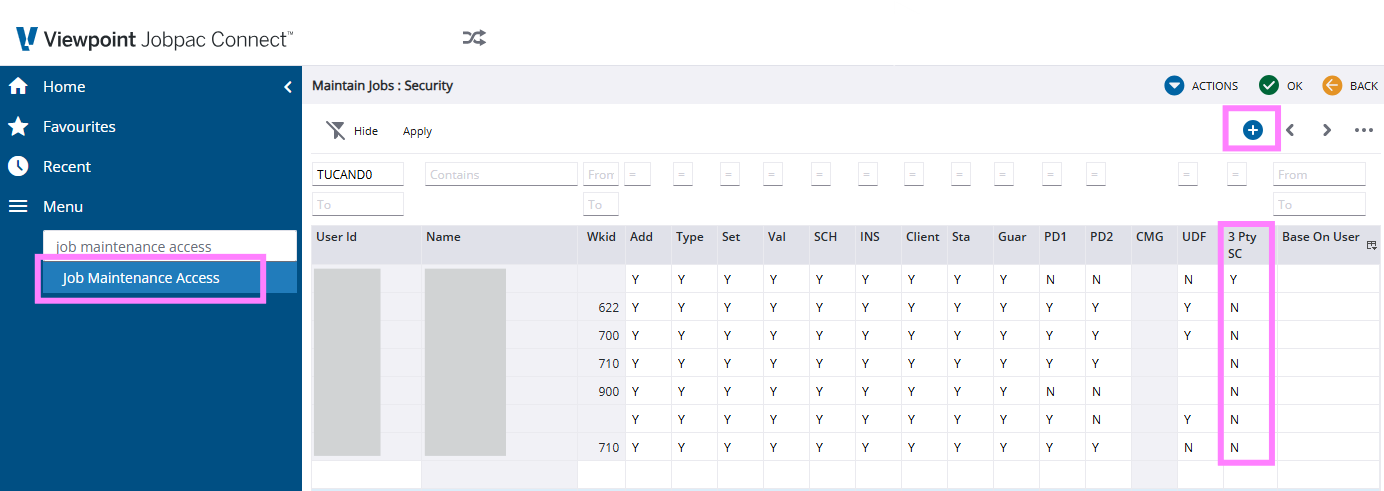
This is configured using the Job Maintenance Access program.
To grant access to a user:
1. Navigate to Job Maintenance Access.
2. Locate the required USERID.
3. In the 3 Pty SC column, enter Y to grant access for the relevant WorkID(s).
If the USERID does not exist in the list:
4. Click the blue plus (+) icon at the top right of the grid to add a new entry.
5. Enter the USERID and set the WorkID:
  • Leave WorkID blank to apply access globally.
  • Enter a WorkID to restrict access to a specific company.
 
6. Set the 3 Pty SC column to Y.
The default value for the 3 Pty SC column is N (no access).
Important: When adding or updating a USERID, ensure all other columns on this screen are reviewed and set correctly, as they control update access across the various tabs in Job Maintenance.

Job Maintenance changes

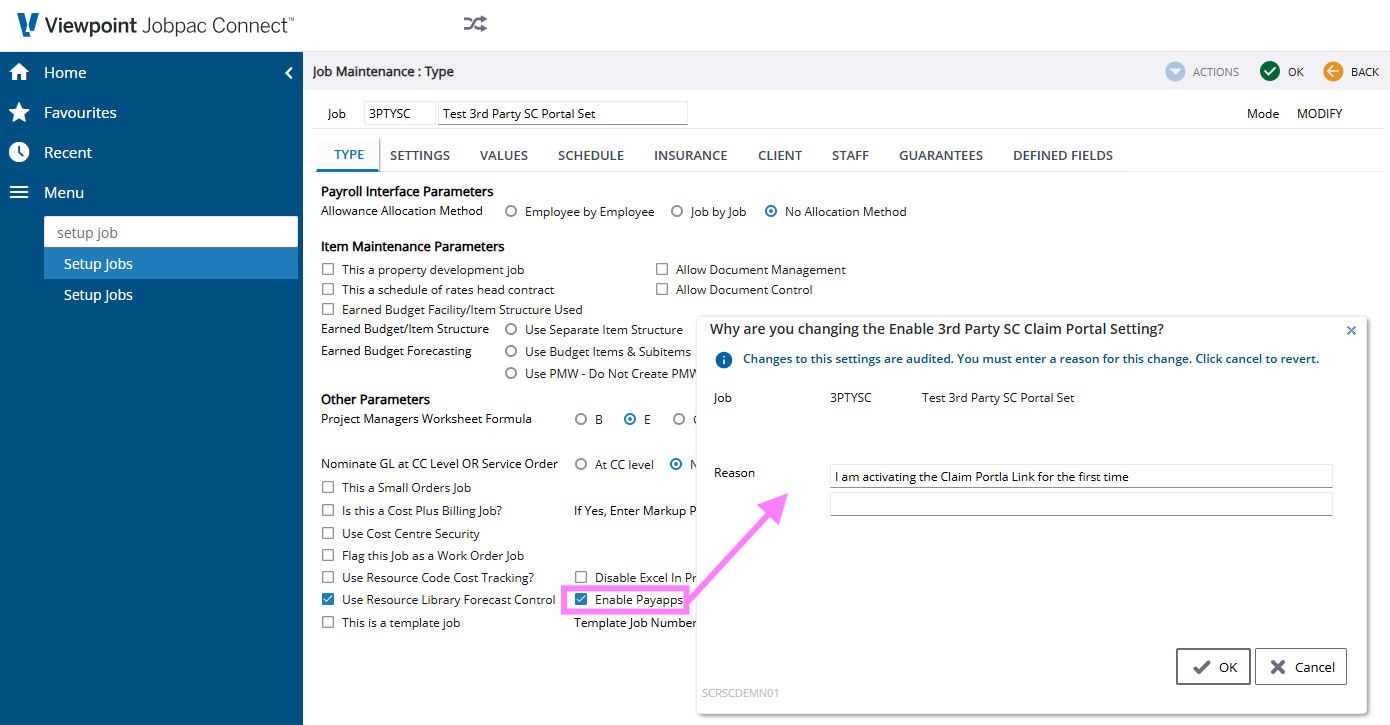
In Job Maintenance, if you have permission to update the 3rd‑Party Subcontract Portal setting:
  • You can change the setting on the Type tab.
  • When you attempt to move away from the tab, you will be prompted to enter a mandatory reason for the change.
  • The change, user, timestamp, and reason are recorded in the audit history.
If you decide not to proceed with the change, select Cancel in the prompt to revert the setting to its previous value.
 
???

Subcontract Maintenance changes

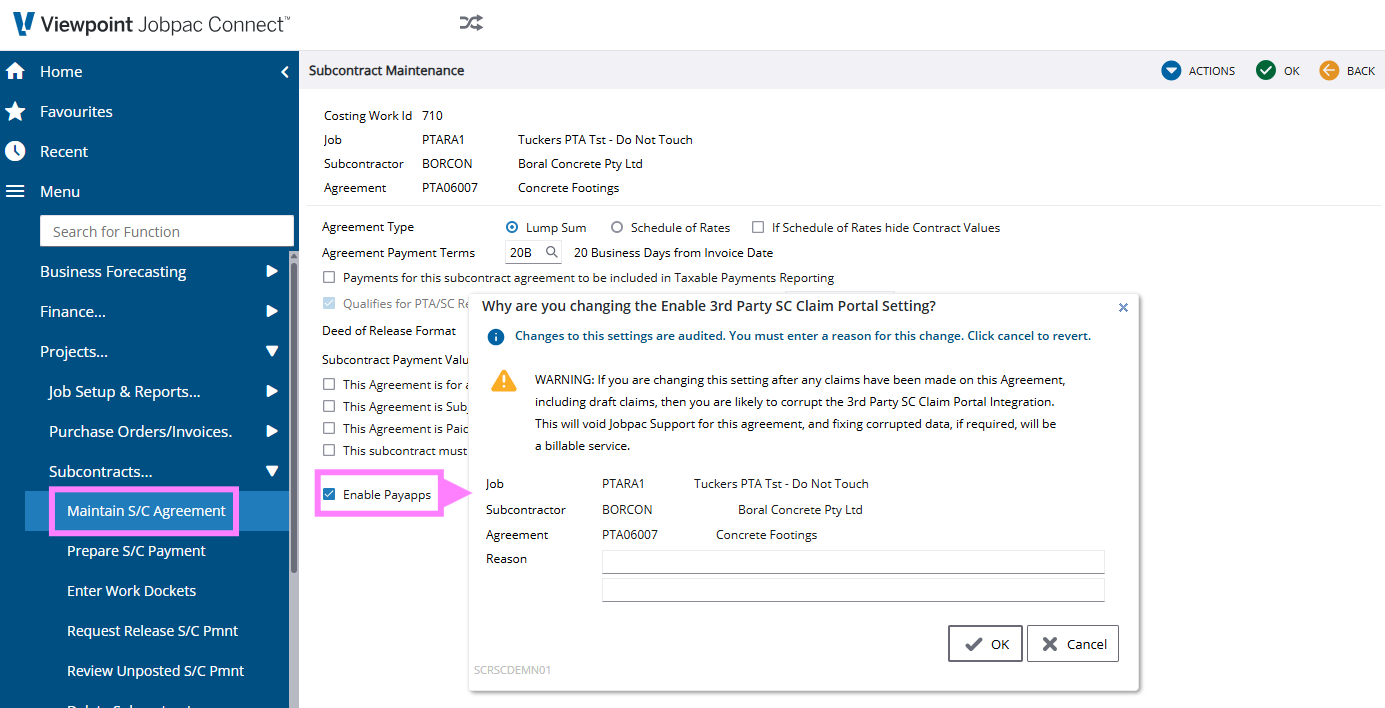
In Subcontract Maintenance, similar controls apply when updating the 3rd‑Party Subcontract Portal setting:
  • You must have the appropriate security access.
  • Any change requires a mandatory reason before you can leave the screen.
  • All changes are audited with user, timestamp, and reason.
An additional warning message is displayed in Subcontract Maintenance to highlight the risks of changing this setting after claims have been processed.
Warning: Deactivating or activating a 3rd‑Party Subcontract Portal after claims have been made can corrupt the integration with the 3rd‑party system. If data corruption occurs due to mid‑contract changes, correction of the data may be a billable exercise.
???

What this means for you

These controls help ensure the integrity of subcontract claims and payments by:
  • Restricting changes to authorised users only.
  • Providing a clear audit trail for compliance and troubleshooting.
  • Reducing the risk of data mismatches between Jobpac and 3rd‑Party portals.
If you are unable to update a 3rd‑Party Subcontract Portal setting, contact your Jobpac administrator to request access


  1.  


Was this article helpful?
0 out of 0 found this helpful

Comments

0 comments

Article is closed for comments.