
2026 R4 Jobpac Release
Head Contract Variation Approvals - Enhancements to Rejection and Transfer Capabilities
Overview
We’ve made some valuable improvements to the electronic approval of Head Contract (HC) Variations.
You can now reverse an approval made in error, safely transfer variations while they are being approved, and see more useful information on the approval screen.
This release also fixes two issues with rejected approvals.
Reject an Approved Variation from the Approval Screen
If an approved HC Variation needs to be reopened, find it in the HC Variation Approval screen using the filters, set the Approval Status to Rejected, and enter a reason.
The variation returns to the status it held before approval (Approved in Principle, Waiting Approval or Notified).
If the Variation was transferred prior to rejection the Transferred status will be maintained but the Current and Forecast Contract Values will be updated correctly to reflect the Expected Price.
You can then correct the variation and send it for approval again.
Transfers are Handled Automatically During Approval and Rejection
A variation can now be transferred after it has been sent for approval.
When the final approver approves it, or when an approved variation is later rejected, the system automatically maintains the transferred status.
It applies the same checks and updates as a manual transfer from the Variation register.
This includes the job history and BFM review period checks and the relevant parameter settings.
All of this happens in the background, with nothing extra for approvers to do.
Optional: Change an Approved Variation Directly in the Variation Register
A new setting, position 3 of the HCVAPP parameter, controls whether users can change an approved variation directly in the Variation register.
It is off by default.
| Setting | Behaviour |
|---|---|
| Off (N or not set) | The status options and price are locked once a variation is approved. To change it, use the rejection process described above. |
| On (Y) | The status and Approved Price can be edited directly. The system reminds the user that the variation must be resent for approval, and the change is recorded in the approval audit trail. |
Approval Rejections Email and Variation Status
When an approver rejects a variation that is awaiting approval, the person who sent it receives an email with the rejection and the approver’s reason.
The variation’s own status now stays unchanged (for example, Waiting Approval remains Waiting Approval). Previously, it was incorrectly set to Rejected.
Fixed: a program failure that occurred when an approval request was set to Rejected or Approved.
Clearer Approval Screen
| Screen | Change |
|---|---|
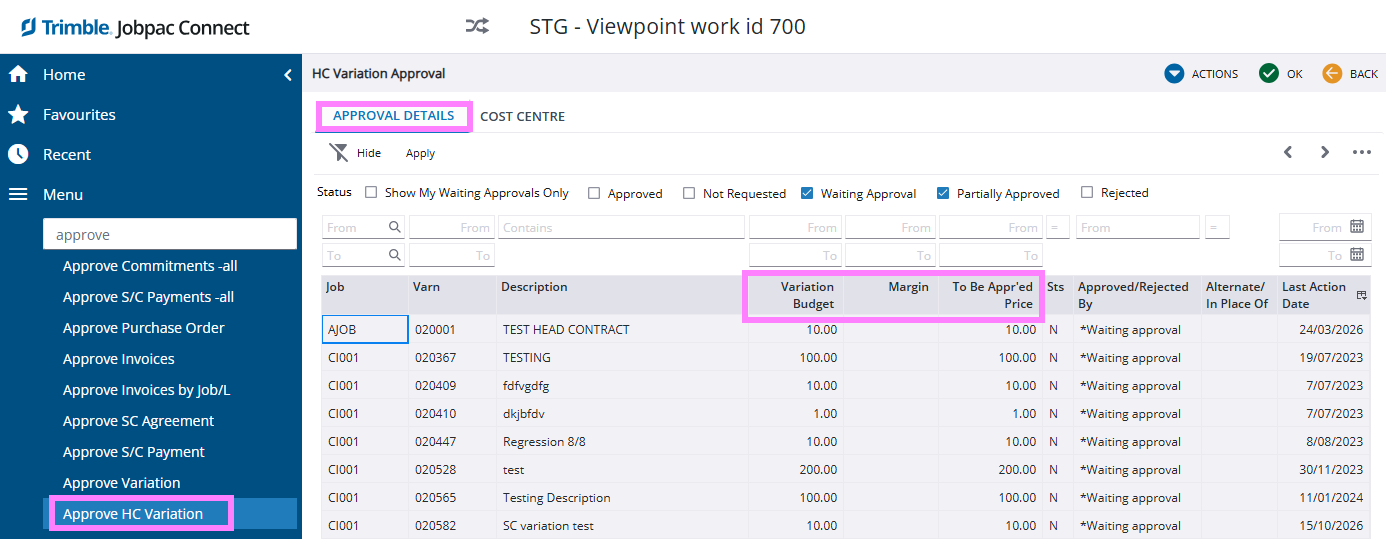
| HC Variation Approval Details tab | The Order, Creditor and SC Price columns have been removed, and the Variation column is wider. |
| HC Variation Approval Details tab | New Variation Budget and Margin columns appear, with Margin calculated as Price to Be Approved less Variation Budget. |
| Business Rules screen | Unused greyed-out entries are removed, and the text is moved to the top of the screen. |
What You Need to Know
- No change to sending a variation for approval. It must still be un-transferred, with Unallocated Budget at zero, and approver selection is unchanged. But it can be transferred after sending for approval.
- Direct editing of approved variations is disabled by default. To enable it, an administrator must set position 3 of the HCVAPP parameter to Y. If a variation price is changed after approval the user will be prompted to resend for approval.
- Rejecting an approved variation affects project values. Contract and Forecast Revenue may be adjusted as part of the process rejection process if the Variation is already in a Transferred status. In this case Job values will be updated with the difference between Expected and Approved Price.
Comments
Article is closed for comments.